Android
Analyze an Android bundle by pointing tuist inspect bundle at an app bundle or an installable:
tuist inspect bundle App.aab
tuist inspect bundle App.apk
Analyzing an .apk requires aapt2, which ships with the Android SDK build tools. Set ANDROID_HOME or ANDROID_SDK_ROOT so Tuist can find it, or put aapt2 on PATH. Analyzing an .aab needs no external tools.
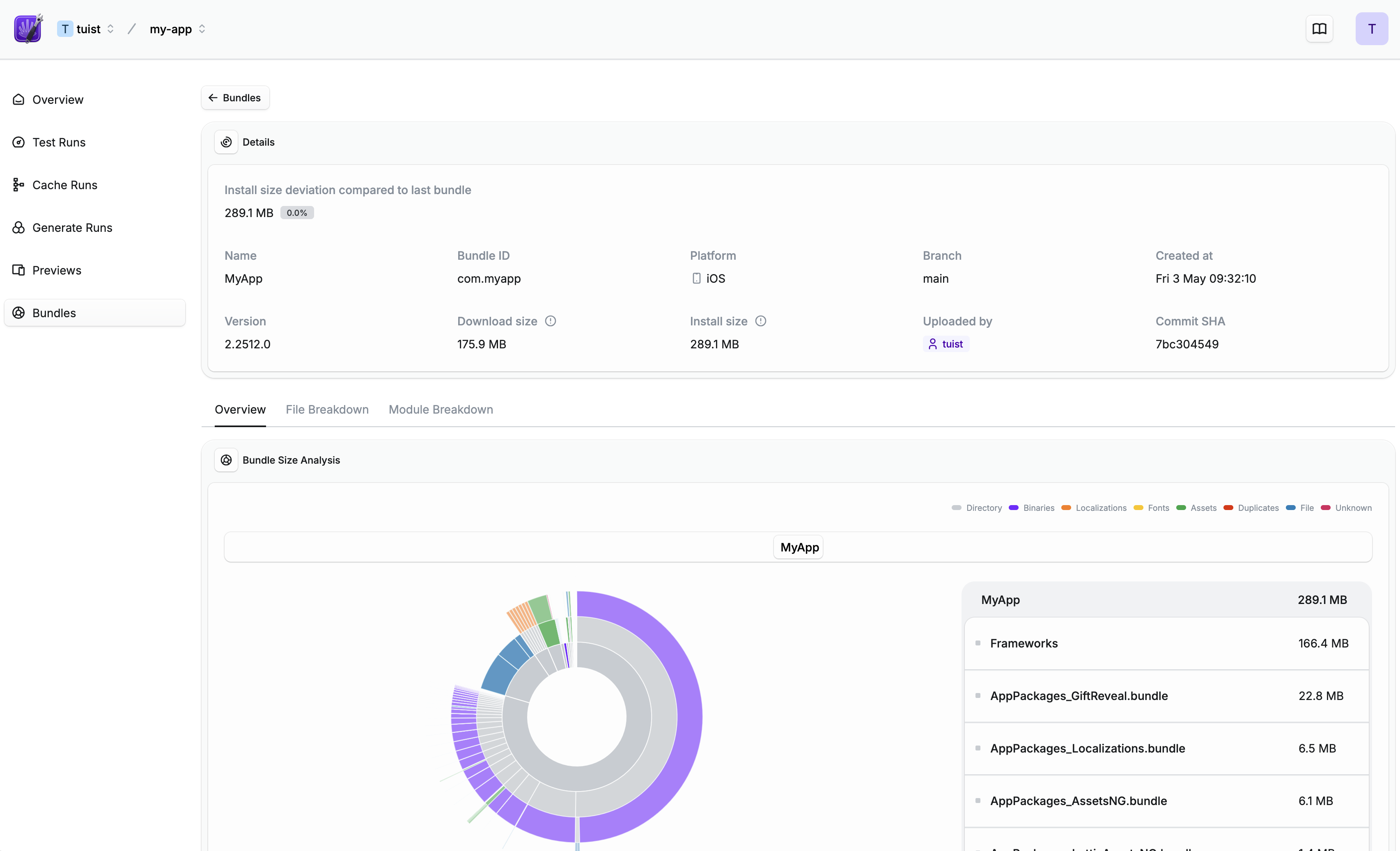
The command uploads the bundle to Tuist and returns a link to a detailed overview, including a scan of the contents and a module breakdown:
Understanding bundle sizes#
For every analyzed bundle, Tuist reports two values:
- Install size: the space the app takes up once installed on a device.
- Download size: the compressed size users download. For Apple bundles this is only reported for
.ipa(the size of the archive); for.xcarchiveor.appinputs it is not available.
Sizes are stored in bytes and displayed using the decimal convention, where 1 MB is 1,000,000 bytes and 1 GB is 1,000,000,000 bytes — the same convention Apple uses to report storage and app sizes (see How storage capacity is measured on Apple devices). An install size of 733,446,863 bytes shows as 733.4 MB.
Continuous integration#
To track bundle size over time, analyze the bundle on CI. First, make sure your CI is authenticated.
Tuist also needs to know which project to report the bundle to. If you have not connected the project yet, run tuist init, or declare the handle yourself:
let tuist = Tuist(fullHandle: "my-account/my-project")
project = "my-account/my-project"
Use tuist.toml for projects without a Swift manifest, such as Gradle projects. When both files are present, Tuist.swift takes precedence.
An example GitHub Actions workflow:
name: Build

jobs:
  build:
    steps:
      - # Build your app
      - name: Analyze bundle
        run: tuist inspect bundle App.ipa
        env:
          TUIST_TOKEN: ${{ secrets.TUIST_TOKEN }}
name: Build

jobs:
  build:
    steps:
      - # Build your app
      - name: Analyze bundle
        # .aab is recommended over .apk for more accurate size analysis
        run: tuist inspect bundle App.aab
        env:
          TUIST_TOKEN: ${{ secrets.TUIST_TOKEN }}
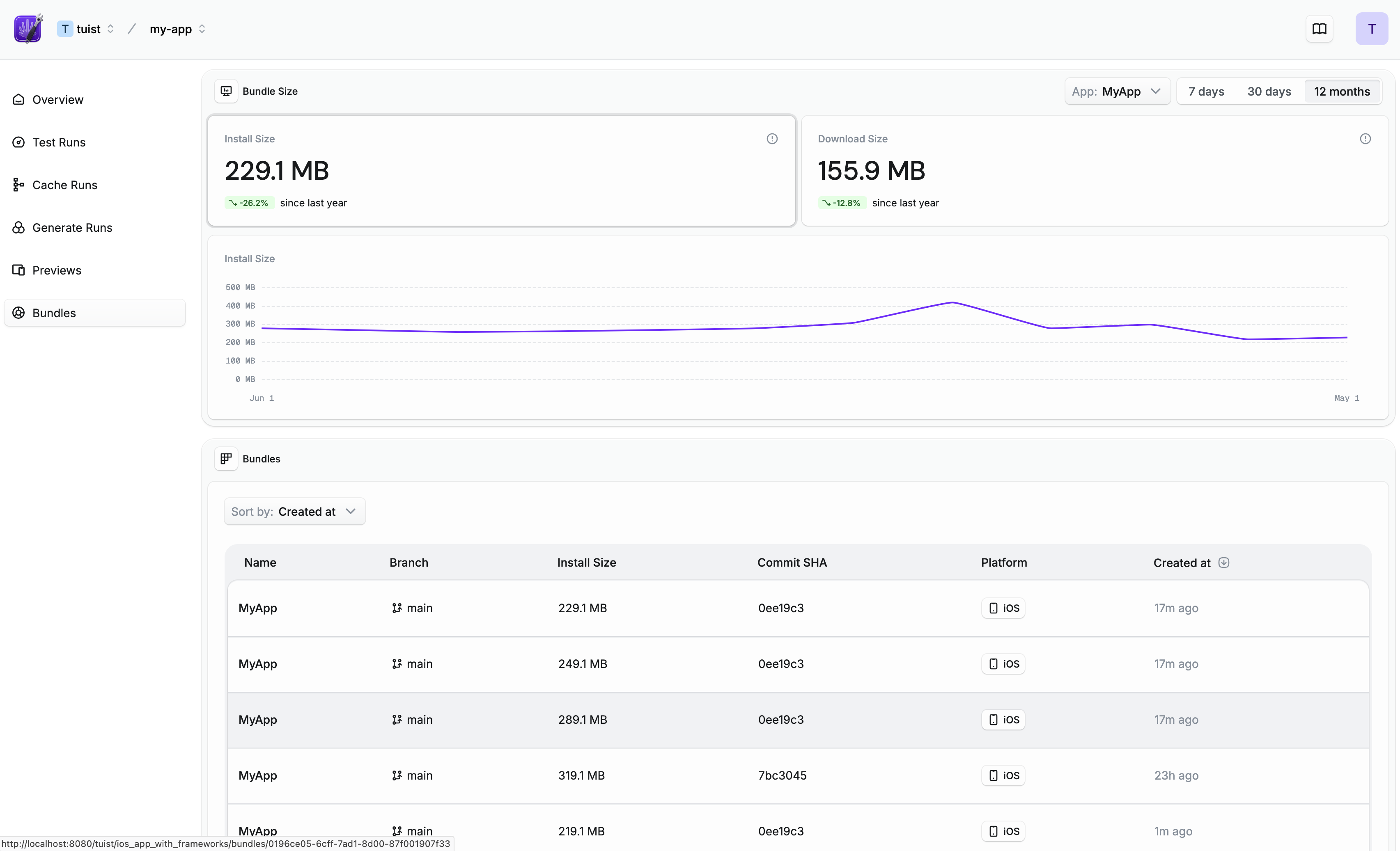
Once set up, you can see how your bundle size evolves over time:
Pull/merge request comments#
To get automatic pull/merge request comments, integrate your Tuist project with a Git platform.
Once your Tuist project is connected with your Git platform such as GitHub, Tuist will post a comment directly in your pull/merge requests whenever you run tuist inspect bundle:

Size thresholds#
To use size thresholds, connect the Tuist GitHub App to your project. You can do this from your project's integrations page.
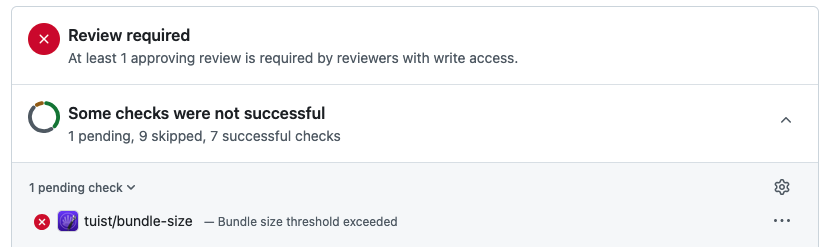
Size thresholds let you block pull requests when the bundle size increases beyond a configured percentage or absolute size compared to a baseline branch. When a threshold is violated, Tuist creates a GitHub Check Run on the PR commit, blocking the merge until the size increase is resolved:
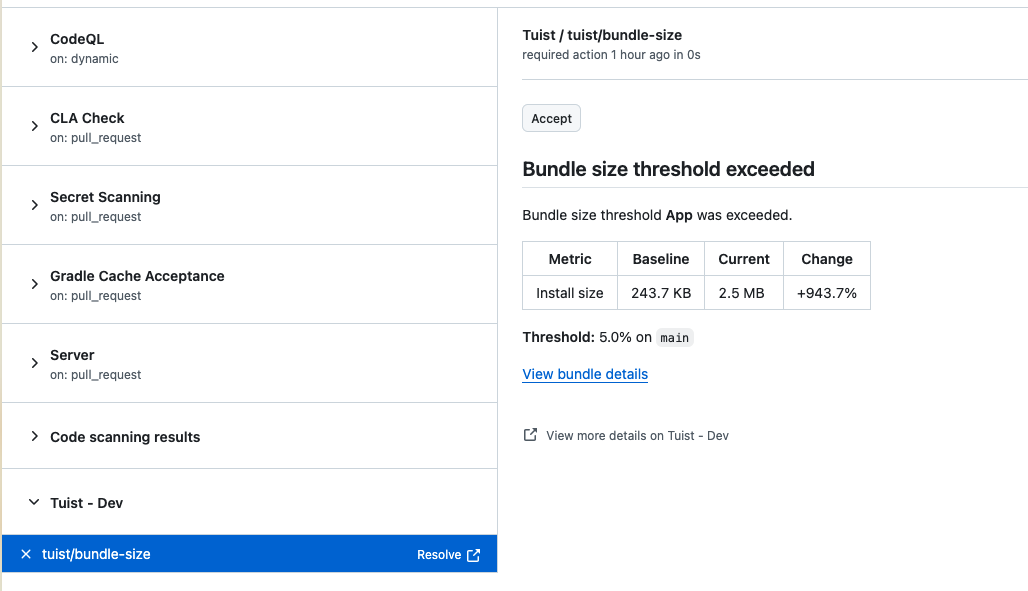
The check run shows the baseline size, current size, and change in the configured unit. If the increase is intentional, you can accept it directly from the GitHub UI by clicking the Accept button:
Configuration#
To configure thresholds, go to your project's Settings > Bundles tab:
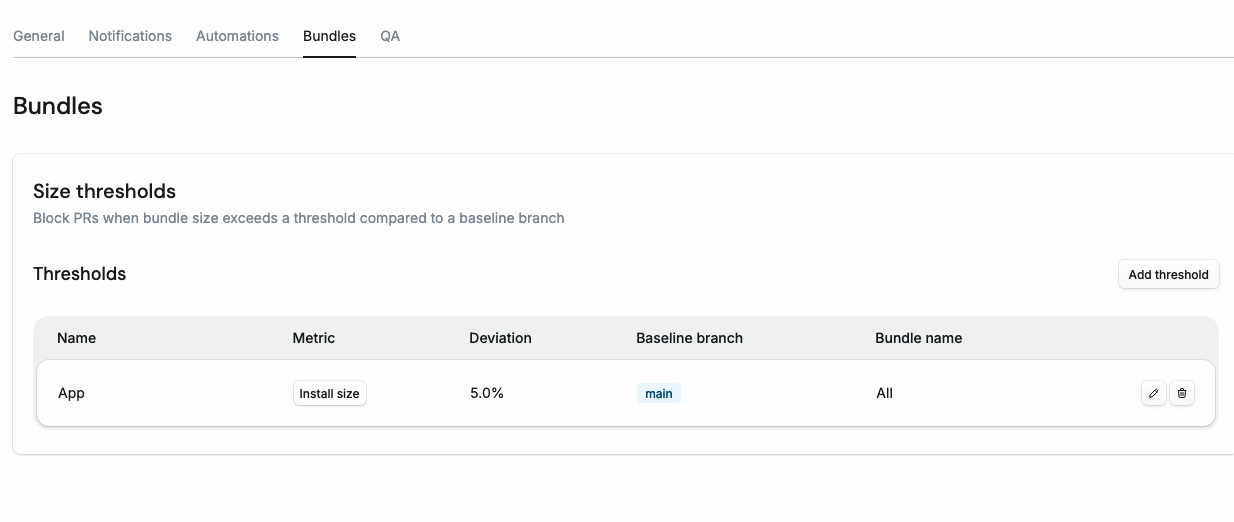
Choose Install size or Download size, then select a Threshold type:
- Percentage (%): limit growth relative to the baseline size. Fractional percentages such as
0.47are supported. Existing percentage thresholds keep their configured values and behavior. - Absolute size (MB): limit growth by a fixed amount, independent of the baseline size. Enter
1.5to allow up to 1.5 MB of growth. MB uses decimal units: 1 MB = 1,000,000 bytes. Values must resolve to a positive whole number of bytes.

Both types compare against the latest bundle on the configured Baseline branch with the same name, the same bundle type (for example .app or .ipa), and at least one platform in common, so a simulator .app is only compared with simulator .app uploads. The optional Bundle name restricts a rule to that bundle. A check fails only when growth is more than the limit; equal growth, unchanged sizes, and decreases pass. Without a matching baseline or a recorded size for the chosen metric, the rule is skipped. A zero-size baseline is supported for absolute limits; percentage limits keep skipping it because percentage growth is undefined.
Restricting who can accept#
By default anyone with write access to the repository can accept a size increase, because that is who GitHub shows the button to. To narrow it, set Who can accept under Settings > Bundles:
- Anyone: the default. Anyone with write access to the repository.
- Selected GitHub users: only the GitHub usernames you add.
Someone not on the list leaves the check failing with an explanation, and the button stays for whoever can use it.