ロゴをSVGとしてコピー
ワードマークをSVGとしてコピー
ブランドアセットをダウンロード
ブランドガイドライン

変更履歴

Product

Control run report comments per project

You can now turn Run report comments on or off in Project Settings → Integrations → GitHub. Existing integrated projects keep comments enabled, and each project controls its own preference.

Turning comments off keeps your repository connection, build and test uploads, and CI job summaries. Existing comments remain on GitHub.

Product

Simulator-only and device-only module caching

Module caching for generated Xcode projects now supports --destination simulator and --destination device when warming and generating. Cache only the iOS slices you need for supported modules, then add missing slices later without rebuilding cached ones.

Both modes preserve native macOS targets, including macros. The default, --destination all, keeps all declared destinations, including Mac Catalyst.

See the module cache guide for usage and support limits.

Product

Verified domains for all SSO organizations

Okta and custom OAuth2 SSO configurations now use the verified-domain model, including organizations previously using temporary compatibility mode.

Existing linked members can continue signing in, and existing SSO enforcement still applies to organization members. Without a verified domain, the login page finds your provider only for existing members, automatic enrollment is paused, and SSO cannot create new accounts. Members with an unlinked account sign in to Tuist first and confirm the link; accounts created by your organization's SCIM provisioning retain their existing linking flow.

To enable domain-based discovery and configured automatic enrollment, open Settings → Authentication, publish the DNS TXT record shown for your login email domain, and click Verify domain. Keep the record published for daily verification checks. Google Workspace behavior is unchanged.

See the SSO verification guide for instructions.

Product

Gradle Isolated Projects support

Tuist's Gradle plugin now supports Isolated Projects and configuration-cache reuse. Keep build insights, test insights, test quarantine, and sharding enabled while Gradle configures projects independently and reuses configuration between builds.

Build and test reports stay correctly linked when configuration is reused, and task-cache insights retain local and remote cache-hit details.

This requires Gradle 8.12.1 or later. Update the Tuist Gradle plugin before opting in; your build scripts and other plugins must also support these features. See the setup guide for the configuration.

Product

Image cache for Linux runners

Every CI job runs on a fresh virtual machine, so Docker starts with nothing on disk. A job that runs in a container:, starts services: or runs docker pull downloads and unpacks every layer of every image, each time. For a large job container, the "Initialize containers" step alone takes close to a minute.

With the image cache, each repository keeps its own Docker data root on a cache volume. A Linux job starts with the images and build cache the repository's earlier jobs pulled and built already in place, so job containers, services and docker pull, docker run and docker build in your steps find their layers locally. In our tests, a job with a 2.3 GB job container and a Postgres service went from about a minute in "Initialize containers" to about 6 seconds, with no layer downloaded.

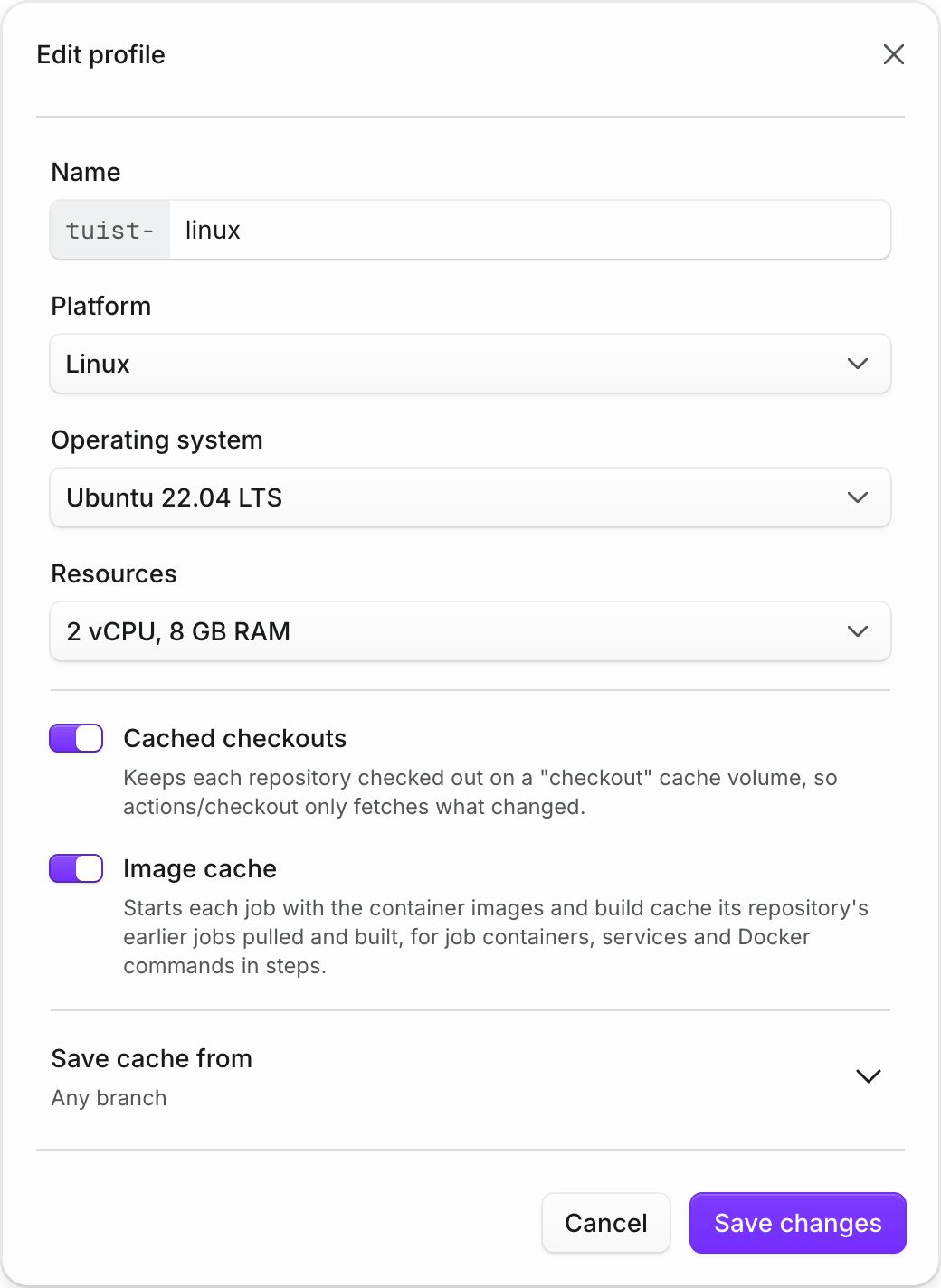
The runner profile form for a Linux profile with Image cache turned on

Your workflows don't change. A repository gets an image cache after one of its Linux jobs uses Docker, and jobs that run at the same time combine the images they add instead of overwriting each other. Every image name is still resolved and authorized against its registry in each job, so a moved tag such as :latest always gives you the new image, and each repository only ever sees images its own jobs pulled. Pull requests from forks never read or write the cache, and only jobs that may save your caches update it.

The image cache is on by default for Linux profiles. To turn it off, open Runners → Profiles, edit the Linux profile your workflows use in runs-on:, and turn off Image cache. Each repository's cache appears as Image cache under Runners → Volumes, where its page lists the saved images, shows how long jobs took to start their containers, and lets you clear it. Image cache storage is not billed.

Product

Build infrastructure and runtime details

Build details now group toolchain versions, host information and runtime observations in one collapsed-by-default Build environment card below Build Details across Xcode, Gradle, Bazel, Mix, Cargo and Once. A compact, responsive key/value grid matches the layout of Build Details. Existing fields such as Gradle/Java, Xcode/macOS, Elixir/OTP, Rust, Bazel and Once versions appear alongside recognized properties such as available logical processors, Gradle worker limits, JVM heap limits, reported OS memory, operating system, process architecture and CI environment. Once uses its already-recorded version and host class without new collection. Memory and heap values are formatted for readability, while unknown properties remain in Custom metadata inside Build Details. Invocation settings, results and source information stay in Build Details.

Updated clients can collect these observations for Gradle builds, Mix compile reports, Cargo builds and live tuist xcodebuild build runs, when available and supported by the server. Imported Xcode activity logs do not acquire observations from the machine uploading them.

Your existing tags and custom values continue to work. Explicit values take precedence over automatically collected observations, and the same string-valued metadata is available through the API and Model Context Protocol tools, so agents can inspect the context behind a slow build too.

Runner names require explicit opt-in. Automatic collection does not include usernames, hostnames, network addresses or environment dumps. Reported properties describe the build environment; they are not verified runner identities.
Product

GitLab merge requests can now save cache volumes

Cache volumes keep the Xcode, module and Gradle caches, plus any directories you choose, between jobs on Tuist runners. Until now, GitLab CI and Buildkite saved changes only from the default branch, so feature work never refreshed the cache other jobs start from.

GitLab CI and Buildkite now follow the same rules as GitHub Actions. Successful jobs from your own project save their changes on every branch:

  • GitLab CI: push, schedule and web pipelines.
  • Buildkite: webhook and schedule builds, including pull requests from the pipeline's repository.

Fork pull requests and fork merge requests never save. Tags never save either.

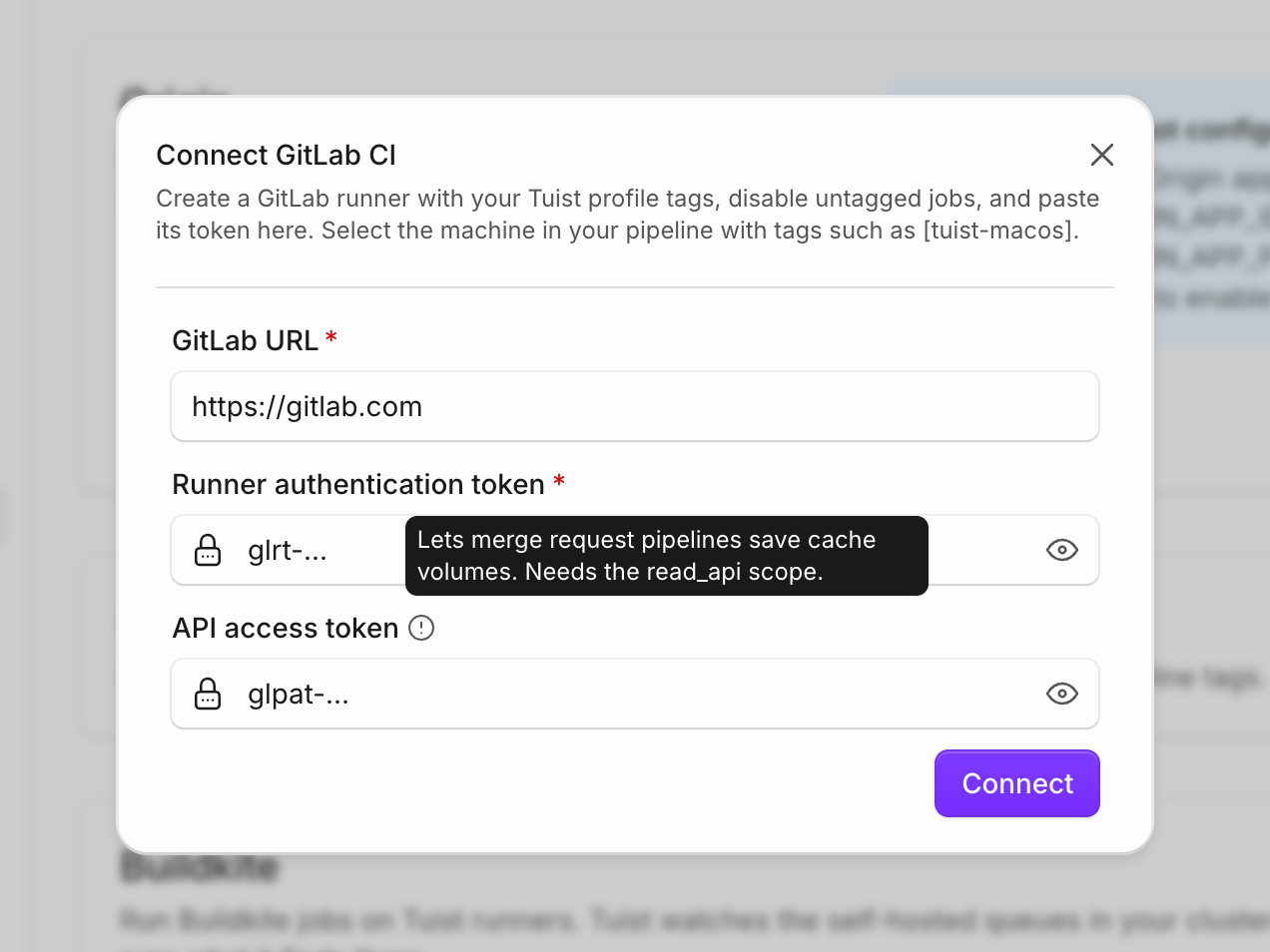
On GitLab, merge request pipelines can save too. Create a project or group access token with the read_api scope and add it as the API access token on the GitLab CI connection in Settings → Integrations. Tuist uses it to check where each merge request comes from. Pipelines of merge requests opened from a branch of your project save under that branch. Without a token, merge request pipelines still use the cache but discard their changes.

The Connect GitLab CI form with the GitLab URL and runner authentication token marked as required, and the help tooltip of the new API access token field open

To save only from some branches, turn on Limit to specific branches on the runner profile your jobs use. That setting now applies to GitLab CI and Buildkite as well. See the cache volumes guide and the GitLab CI guide for details.

Product

Cached checkouts for macOS runners

Every CI job runs on a fresh virtual machine, so actions/checkout clones your repository from scratch each time, Git LFS files included. On a large repository with LFS, that step alone can take minutes.

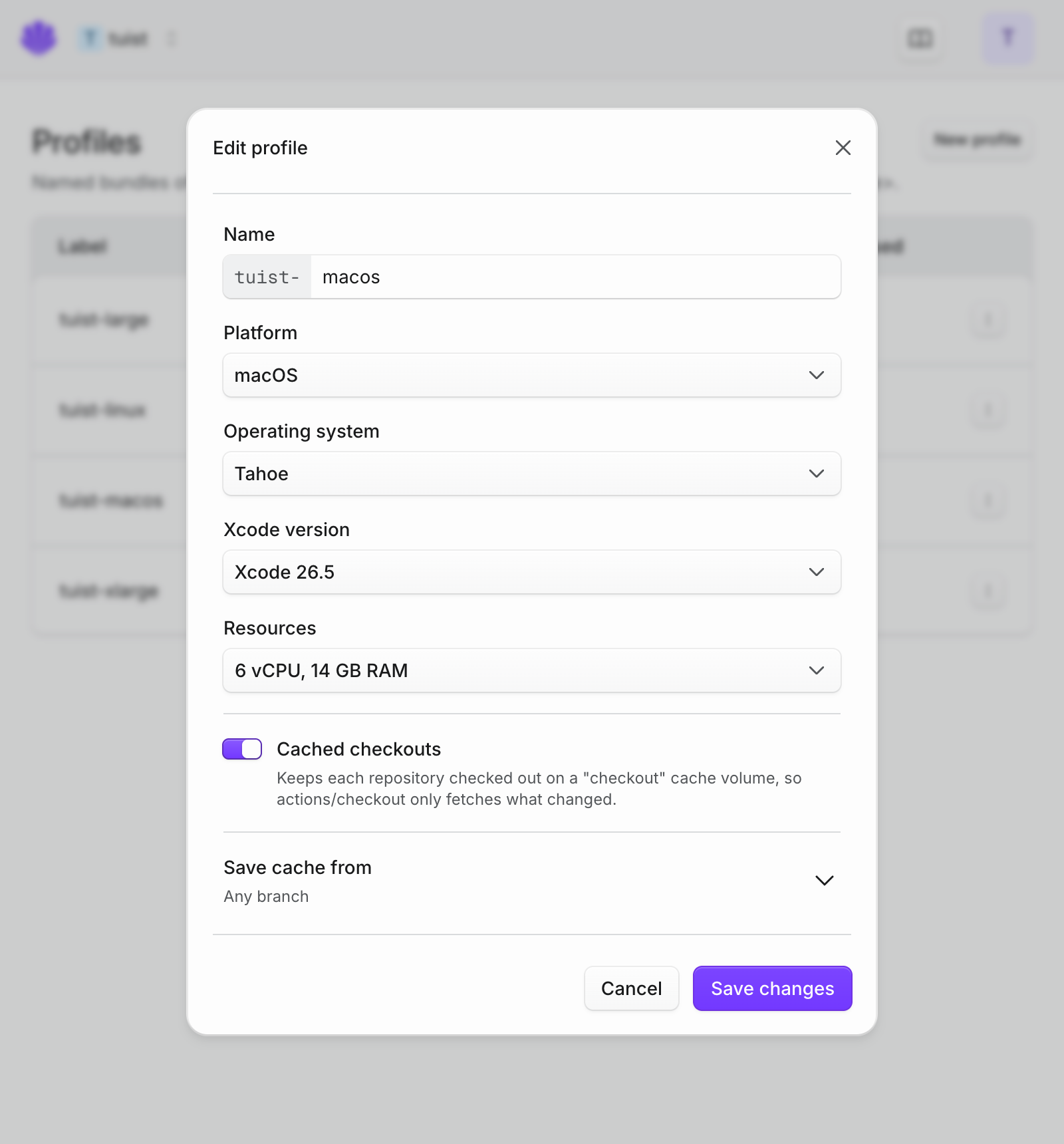
With cached checkouts, each runner host keeps your repository checked out on a cache volume named checkout. A macOS job starts with that copy mounted at its workspace, and the standard actions/checkout action finds the repository already there: it fetches only the commits and LFS files that changed, and rewrites only the files that differ. In our tests, checking out a repository with 2,000 LFS files went from about 65 seconds to under 10, mounting included.

The runner profile form for a macOS profile with Cached checkouts turned on

Your workflows don't change. The runner host builds the cached copy from the checkouts your own jobs already do, verifies everything it takes from them, and never needs extra GitHub permissions. Pull requests start from the cached copy too, while only jobs on your default branch move it forward. The first job of a repository on each host checks out as before.

Cached checkouts work with GitHub Actions on macOS profiles and the default workspace path. They are on by default; to turn them off, open Runners → Profiles, edit the macOS profile your workflows use in runs-on:, and turn off Cached checkouts. The checkout volume appears next to your other volumes under Runners → Volumes, where clearing it rebuilds the copy from your next jobs.

Product

Cache volumes now save from every branch

Cache volumes keep dependency directories between CI jobs. Until now, only successful jobs on the default branch saved their changes, so pull requests kept starting from whatever the default branch last saved.

With GitHub Actions, every successful job from your repository now saves its changes, including pull requests from the same repository. Pull requests from forks and pull_request_target jobs never save. A job that doesn't change a volume leaves the saved version in place.

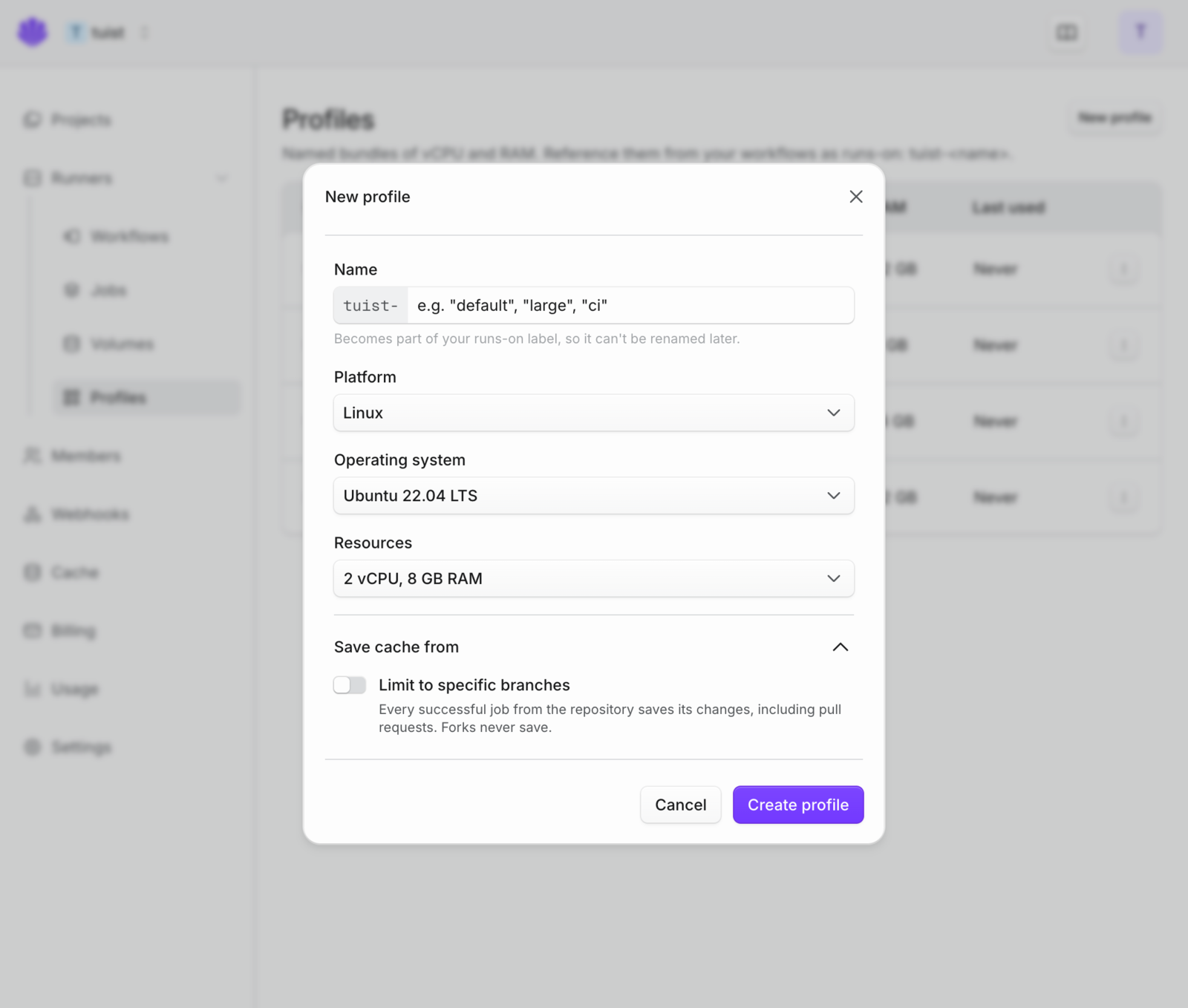
The new runner profile form with the Save cache from section expanded and Limit to specific branches turned off

To save only from some branches, open Runners → Profiles, edit the profile your workflows use in runs-on:, expand Save cache from, and turn on Limit to specific branches. You can then keep the default branch and add branch names or patterns such as release/*. Profiles that already limit saving to specific branches keep their settings. Buildkite and GitLab CI keep saving from the default branch. See the cache volumes guide for details.

Product

Link repositories and read Cargo, Mix and Once builds from the CLI, API and MCP

You can now link a Tuist project to a GitHub repository without opening the dashboard. Run tuist project repository connect owner/name, call PUT /api/projects/{account_handle}/{project_handle}/vcs-connection, or use the connect_project_repository Model Context Protocol tool. The repository must be one your GitHub App installation can access, and the project adopts its default branch. Account tokens need the project:admin:write scope. tuist project repository disconnect and the matching endpoint and tool remove the link.

Cargo builds, Mix builds and Once runs are now readable outside the dashboard too. Run tuist build cargo list, tuist build mix list or tuist build once list (and show for one build or run), use the list and detail endpoints under /api/projects/{account_handle}/{project_handle}/cargo/builds, /mix/builds and /once/runs, or the list_cargo_builds, get_cargo_build, list_mix_builds, get_mix_build, list_once_runs and get_once_run tools.

See the GitHub integration guide and the Model Context Protocol guide for details.